Set up your congregation and onboard publishers
This guide is for congregation admins and superusers. It walks through tenant setup, congregation management, publisher onboarding, and where to go for the day-to-day admin work in Public Witness Scheduler.
1. Understand what a tenant congregation is
A tenant congregation manages its own witnessing locations, schedules, and helper relationships. Right now Brutus is operating as an active tenant. Other congregations can remain helpers until their own admins decide to activate their tenant workspace.
2. Review a congregation’s status
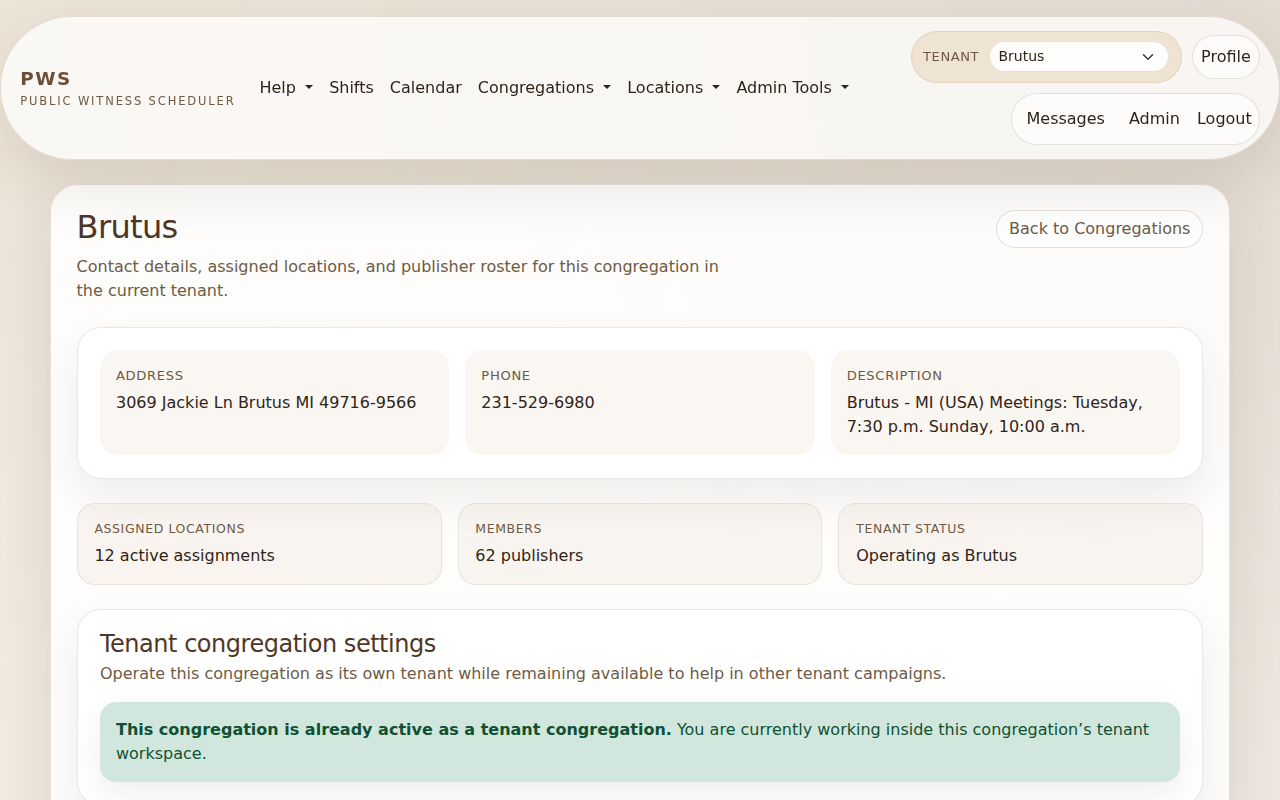
Open Congregations from the main navigation and select the congregation you want to manage. The congregation page shows contact details, assigned locations, members, and whether the congregation is already operating as a tenant.
- Open the Congregations menu in the main navigation.
- Select the congregation you want to review.
- Look at the Tenant congregation settings section to see whether it is already active as a tenant.
3. Enable a congregation as its own tenant
If the congregation is not yet operating its own tenant, a congregation admin can activate it from the congregation detail page. Public Witness Scheduler will reuse an existing tenant if one already exists, or create one automatically if it does not.
- Go to the congregation’s detail page.
- In Tenant congregation settings, choose Enable this congregation as a tenant.
- After activation, the congregation can manage its own locations and schedules while still helping in other tenants.
4. Add or update congregation members
You have three ways to bring publishers into your congregation. Pick whichever fits the moment.
A. Invite by email (easiest — new in June 2026)
If you have the publisher’s email address, send them an invite link and let them pick their own username and password. They never see a temporary password and you never have to write one down.
- Open Scheduling → Publishers (the “Manage publishers” page).
- Click ✉ Invite by email, fill in the publisher’s email (and optionally first / last name and role), then send.
- They get a branded email with a link that expires in 7 days. When they click it, they choose a unique username — the page tells them in real time whether the username is taken — set a password, and the account is created in your congregation automatically.
- The Pending invitations list on the same page shows who has been invited and lets you cancel an invite that has not been accepted yet.
Username rule: usernames are unique across the entire site, so if a publisher’s preferred username is already taken they will be prompted to choose another. The same email address can appear in more than one congregation (handy for visitors and helpers) — only the username must be unique.
B. Add a publisher directly with a temporary password
Use this when you want to print or hand-write credentials for a publisher who does not have email handy. This is the long-standing flow and still works the same.
- Open Scheduling → Publishers.
- Click + Add publisher, fill in the form, save, and print the temporary credentials sheet.
- Hand the credentials to the publisher; ask them to change the password on first login.
C. PWS Admin → Users (for cross-congregation edits)
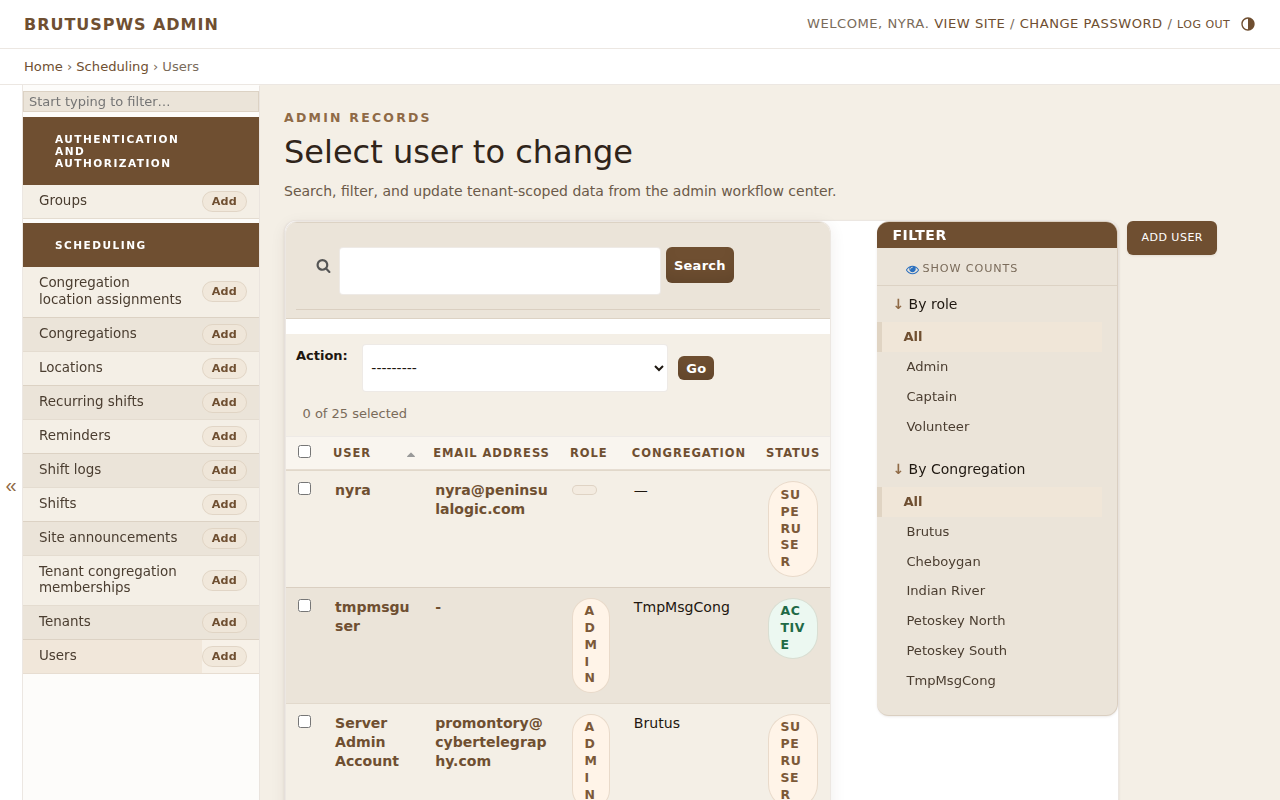
The Django admin is still the right place for one-off cleanup: moving a user between congregations, deactivating an account, changing a role outside your own congregation, or bulk-editing role flags.
- Open Admin from the top-right utility links.
- Select Users.
- Create a new user or open an existing one.
- Set the person’s role and congregation.
- Save the user, then give them their login details.
5. Help publishers get started
Once a user account is created, help the publisher sign in, open their profile, and confirm their personal details are complete. They can update their own name, phone number, address, theme, and profile image from the profile page.
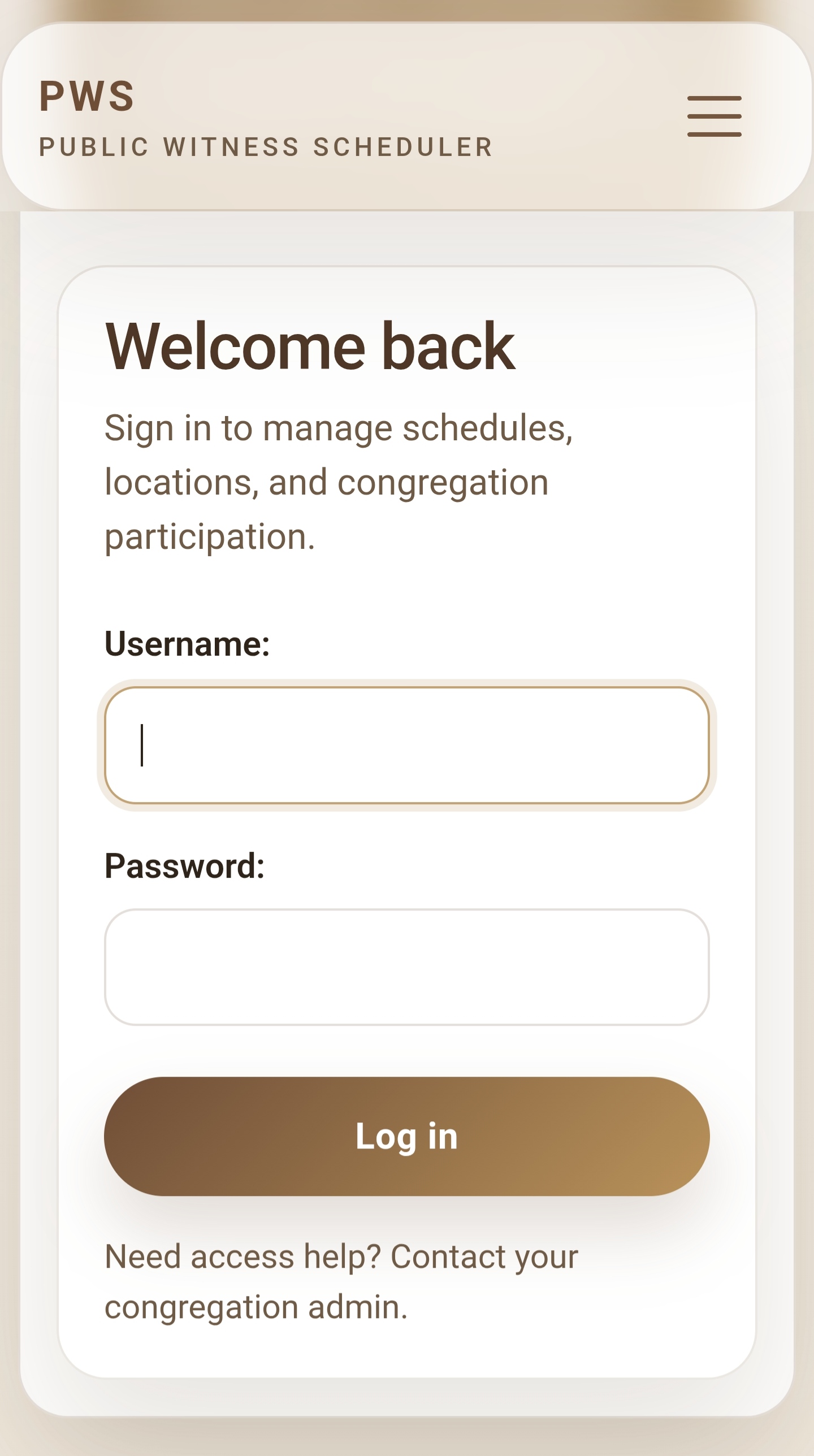
- Ask the publisher to log in with the credentials you created.
- Direct them to Profile in the top-right corner.
- Have them update their information so scheduling and messaging stay accurate.
6. Task guides for everyday work
The full walk-throughs for the most common admin tasks live in their own pages:
- Adding and editing locations — map pin, address auto-fill, delete rules.
- Creating shifts and recurring rules — single shifts, seasonal recurring rules, cancel vs delete.
- Onboarding publishers and setting roles — add a publisher, hand off the temporary password, approve for helper congregations.
- Using Public Witness Scheduler messages — compose, reply, archive, trash.
7. Pause visibility of shifts in tenants you help
If a season comes when your own congregation needs every available publisher on its own locations, you can quietly redirect attention by pausing visibility of the helped tenant's shifts. This is per-relationship — if your congregation helps two other tenants, you can pause one and leave the other visible.
Where to do it: open Manage → Tenants we help. Each row is a tenant your congregation is currently a helper for, with a Pause visibility button.
What "Pause visibility" does for the helped tenant's shifts:
- The tenant disappears from your volunteers' tenant switcher dropdown.
- Its shifts no longer show in their shift list, calendar, or sign-up flow.
- Helper-shift invitations to your publishers from that tenant are blocked.
- Sign-ups attempted via direct link are politely refused with a note pointing them at you.
What it does not do — your existing helping relationship is preserved:
- Existing signups stay valid. Anyone already on a future shift in the helped tenant remains on it, and reminders for those shifts still go out.
- Your congregation is still listed as an active helper in the helped tenant. Their admins can still rely on existing signups and can still message your publishers.
- Admins of your congregation (you) still see the helped tenant in your own tenant switcher so you can verify the pause is in effect, view existing signups, and resume when ready.
The helped tenant will know. Their Manage → Helpers page will show a "Visibility paused" badge next to your congregation's name, so they can plan their own coverage accordingly. There's no surprise; pausing is a coordination signal, not a withdrawal.
Volunteers will know too. The next time a publisher with a future signup in the paused tenant visits the home page, a soft banner explains that visibility is paused, that their existing signups are still on the schedule, and that they should talk to their admin if they need to add a new visiting shift.
To resume, return to Manage → Tenants we help and click Resume visibility. Everything reappears immediately on the next page load.
8. Manage publisher reminders
The short notes that appear on every publisher's home page under Public witnessing reminders live in the admin under Scheduling → Reminders. Add, edit, reorder, or remove them any time — changes are live immediately, no deploy needed.
See the dedicated walk-through with screenshots: Managing publisher reminders.
9. Recommended onboarding checklist for a new congregation admin
- Confirm the congregation record is correct.
- Decide whether the congregation should remain a helper or activate its own tenant.
- Create user accounts for the congregation’s admins and publishers.
- Verify congregation and tenant assignments in admin.
- Check locations, scheduling surfaces, and member visibility in the main app.